
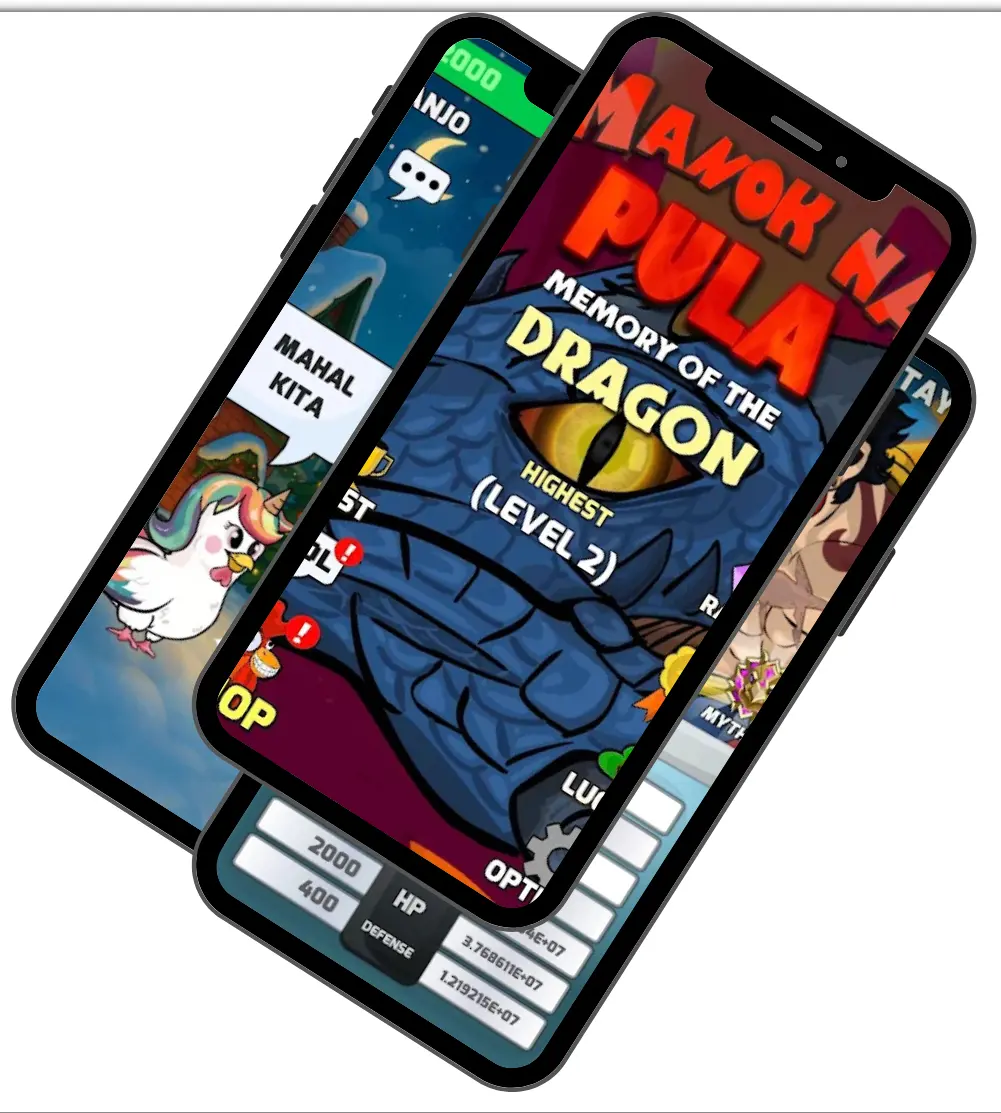
Installing Manok Na Pula Mod APK is genuinely a five-minute process on most devices — but the two things that actually stop an install (a mismatched app signature and a Google Play Protect block) need more than “tap install and hope it works.” This guide walks through exactly what to check before you start, the correct steps for your specific Android version, and how to fix the single most common failure players run into.
Before You Start: Three Things That Need to Be True
- Enough free storage. 300 MB free is the practical floor — anything less tends to produce installs that silently fail partway through rather than giving you a clear error message.
- Installing from outside the Play Store is enabled for whichever app you’re using to open the file (browser, file manager, etc.) — more on exactly where to find this below, since it depends on your Android version.
- A complete, unmodified download of the APK file. A partial or interrupted download is one of the most common causes of installation errors, so if your download was interrupted at any point, redownload before troubleshooting anything else.
Enabling Installs From Outside the Play Store (By Android Version)
Android has changed how it handles this permission several times over the years, and which approach applies to you depends entirely on your device’s Android version — not the phone brand. Check yours first: Settings → About phone → Android version, then follow the matching instructions below.
Android 7 and earlier: A single global toggle. Go to Settings → Security → Unknown Sources and switch it on.
Android 8 through 12: The global toggle was removed. Instead, each individual app you use to open the APK (your browser, or a file manager) needs its own permission grant. When you tap the downloaded file, Android will prompt you directly — follow the on-screen prompt to enable it for that specific app.
Android 13 and later: This permission is off by default system-wide, and Google Play Protect actively scans and can block sideloaded installs that request certain permissions, rather than just passively warning about them. If you’re on Android 13+, expect to see a more assertive Play Protect prompt during install (covered in the next section) — this isn’t a sign anything is wrong with the file, it’s just how newer Android versions handle sideloading by default.
Handling the Google Play Protect Warning
At some point during installation, you’ll likely see a Play Protect prompt. This is worth understanding rather than dismissing on instinct:
Play Protect flags the file because its signature doesn’t match what Google has on record for the official version of the game — which is expected and normal for any modified APK, not a sign of malware detection specifically. That said, this is also exactly why source matters: always confirm you’re downloading from a source you trust, and check the published file hash if one is available, before choosing to proceed past this warning.
The Most Common Failure: “App Not Installed”
If you’re seeing this specific error, the cause is almost always the same thing: the official version of Manok Na Pula is already installed on your device. The official app and the modded build share the same underlying package identity, but their signatures don’t match — Android blocks the install specifically to prevent one app from silently overwriting another with mismatched credentials.
The fix: uninstall the official Manok Na Pula app first, then install the modded APK. If you have local save data you want to preserve, back it up before uninstalling — once removed, that data typically can’t be recovered on the modded build, since progress isn’t automatically transferred between the two versions.
Step-by-Step: Android
- Confirm your Android version and follow the matching “Enabling Installs” instructions above
- Uninstall the official app first, if present, following the save-data note above
- Download the APK file, and verify the completed file size matches what’s listed on the download page
- Tap the downloaded file, then tap Install
- Handle the Play Protect prompt as described above if it appears
- Once installed, open the app and grant any storage permissions it requests so your save data writes correctly
Step-by-Step: PC (via Emulator)
There’s no standalone PC version, but the same APK runs through an Android emulator like BlueStacks or LDPlayer. Install your emulator of choice first, then open the downloaded APK file directly inside it — the install process itself works the same way as it would on a phone, and any Play Protect prompt is handled the same way too.
Step-by-Step: iOS
There’s no native iOS mod build, since Apple doesn’t support direct APK installation. Reaching the mod on iPhone or iPad means converting the file to IPA format first and sideloading it through a signing tool — this comes with its own certificate considerations (the install typically needs periodic re-signing as the certificate expires), which is worth knowing going in rather than being surprised by later.
Quick Recap
- Confirm 300 MB+ free storage and a complete, unmodified download before starting
- Check your Android version — the “unknown sources” process differs meaningfully between older and newer versions
- A Play Protect warning is expected for any sideloaded file — verify your source, don’t dismiss it blindly
- “App Not Installed” almost always means the official version needs to be uninstalled first
- PC works through an emulator using the same APK file; iOS requires IPA conversion and periodic re-signing
Frequently Asked Questions
Why do I keep getting “App Not Installed”? This almost always means the official Manok Na Pula app is still on your device — uninstall it first, then install the modded version.
Is the Play Protect warning a sign the file is unsafe? Not by itself — it flags any file whose signature doesn’t match Google’s record for the official app, which is expected for a modified build. It’s still worth verifying your download source and file hash before proceeding.
Can I keep my save data when switching to the modded version? Not automatically — back up any local save data before uninstalling the official app, since progress typically doesn’t transfer between the two versions.
Do I need root access to install this? No — root is not required for a standard sideloaded APK install.